CP2K Editor
The CP2K editor is fully customized to make writing input files quick and fun.
Presets
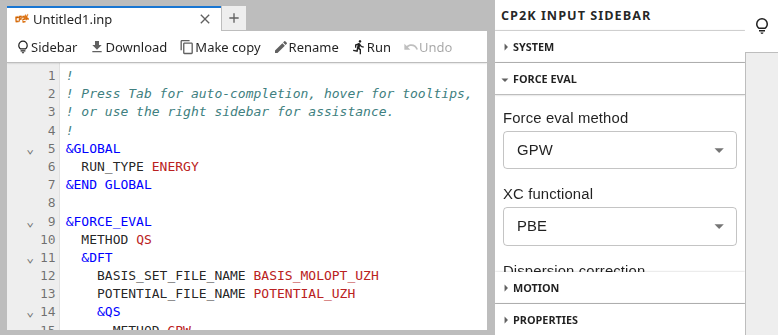
The right sidebar provides a large number of presets to quickly assemble an input file. It also issues warnings when incompatible options were selected.
The presets do not hold any internal state, they are merely a different representation of the input file. When a preset is selected, it “stamps” its changes into the input file while leaving the remaining file untouched. For transparency the modified lines are highlighted briefly.
When the input file is edited directly then the presets are updated accordingly. If none of the available options matches the input then the preset will enter a neutral/blank state.
Amenities
Auto-complete
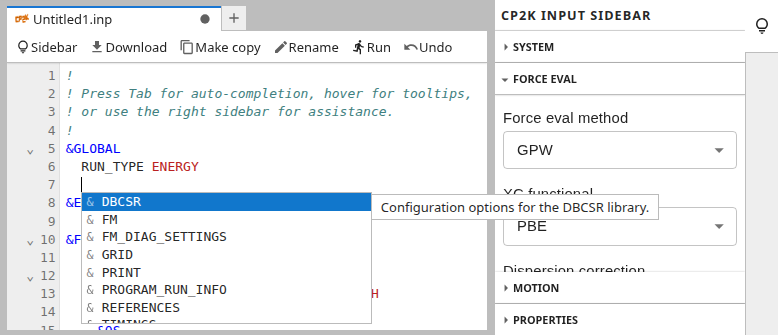
The editor has auto-complete for section names, keyword names, and enum values.
Press Tab anywhere to start auto-complete.
Use Up and Down to select an option.
Accept a selected option with Enter.
Abort auto-complete with Esc.
Undo / Redo
Any change including preset selections can be reverted with the undo button from the toolbar. Likewise, an undo operation can be reverted with the redo button.
Context help
Hovering over a section or keywords brings up a popup with the description from the CP2K input reference.
Linter
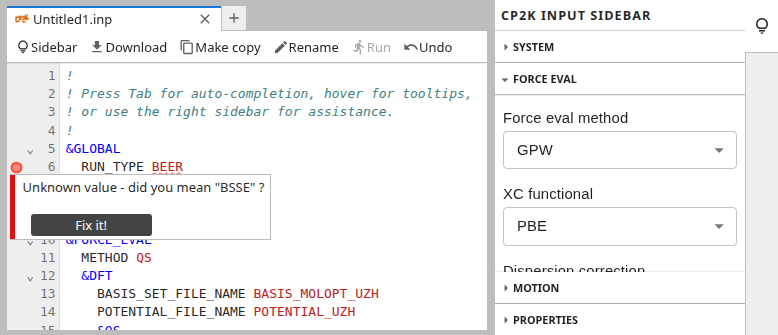
A linter is continuously checking the input file for syntax errors and misspellings. To see the full error message click on the red dots in the left gutter.
Section folding
For larger input files one can hide sections by clicking on the small arrows in the left gutter.
Key bindings
| Function | Binding |
|---|---|
| Cut | Ctrl + x |
| Copy | Ctrl + c |
| Paste | Ctrl + v |
| Search | Ctrl + f |
Job submission
Once the input file is complete, it can be readily launched by clicking on
the run icon ( ) in the toolbar,
which will bring up the job submission dialog.
) in the toolbar,
which will bring up the job submission dialog.